
Check which channels the problem is happening on
If there are black horizontal or vertical bars around the picture on High Definition (HD) channels only, there isn’t a problem with your box.
HD channels sometimes show “up-scaled” Standard Definition (SD) programmes when there is no HS source material available.
When the SD programmes are up-scaled, their original 4:3 aspect ratio image doesn’t fit the 16:9 aspect ratio on modern TV screens. To stop the picture being stretched in these cases, black bars are broadcast on either side of the image.
If you’re having picture size problems on all channels, continue to the next step.
Check the Sky box picture settings
If your Sky box is connected to your TV by a RF cable and you have a widescreen TV, change the picture format to 16:9:
- Press services on your Sky remote, select Settings and then select Picture
- Change SCART/RF1 Picture Format to 16:9
- If you use a tvLINK, highlight R2 Picture Format and change it to 16:9 as well
- Press green to save the settings, then Sky to return to live TV
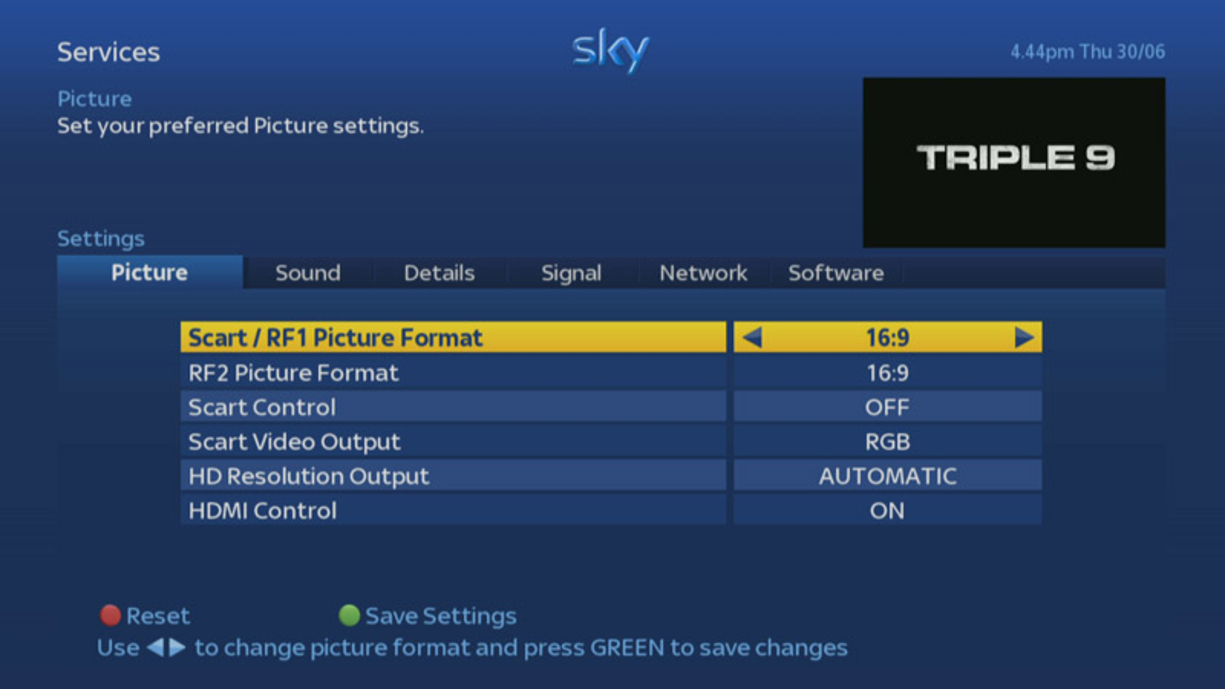
If you have an older, non-widescreen TV, then follow the steps above, but change the picture format to 4:3 instead.
If you're still having picture resolution problems, continue to the next step.
Check your TV's picture settings
Widescreen TV’s may have a zoom function which makes the picture bigger to fill (or almost fill) the screen. These settings can be changed manually by pressing TV then Play on your Sky remote, or by using your TV’s remote.
Your TV might also use a ‘wide facility’ that forces every programme into widescreen by stretching a 4:3 picture to a 16:9 resolution.
Other options may include a wide facility that forces every showing to widescreen. The TV does this by stretching a 4.3 picture to widescreen.
You can check your TV manual to get the aspect ratio for your TV.