
Make sure the programme is showing in HD
Sometimes. HD channels show Standard Definition (SD) content when there is no HD source material available. To check whether the programme you're trying to watch is broadcasting in HD:
- Press tv guide on your Sky remote, select TV Guide and then select the HD tab
- Highlight the programme you're trying to watch. HD should appear in the top right corner of the synopsis. If HD isn't showing, it means the programme is being broadcast in SD.
-
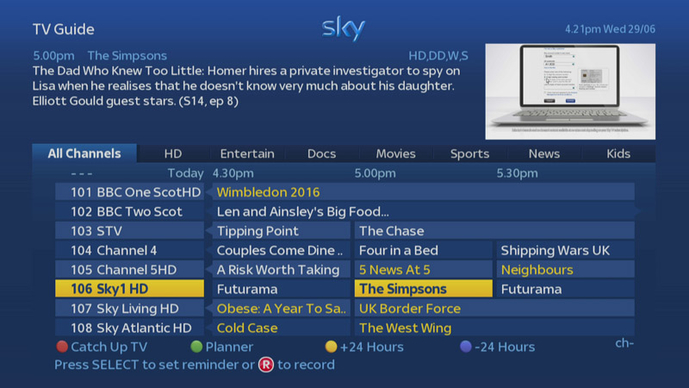
You can also check this while watching live TV by pressing i and checking the synopsis banner.
Check your Sky box is set up to watch in HD
To get a HD picture, make sure you're you're using a HDMI cable to connect your Sky box to your TV, and that your TV is on the correct HDMI channel.
Then, check your Sky box is set up to output HD content:
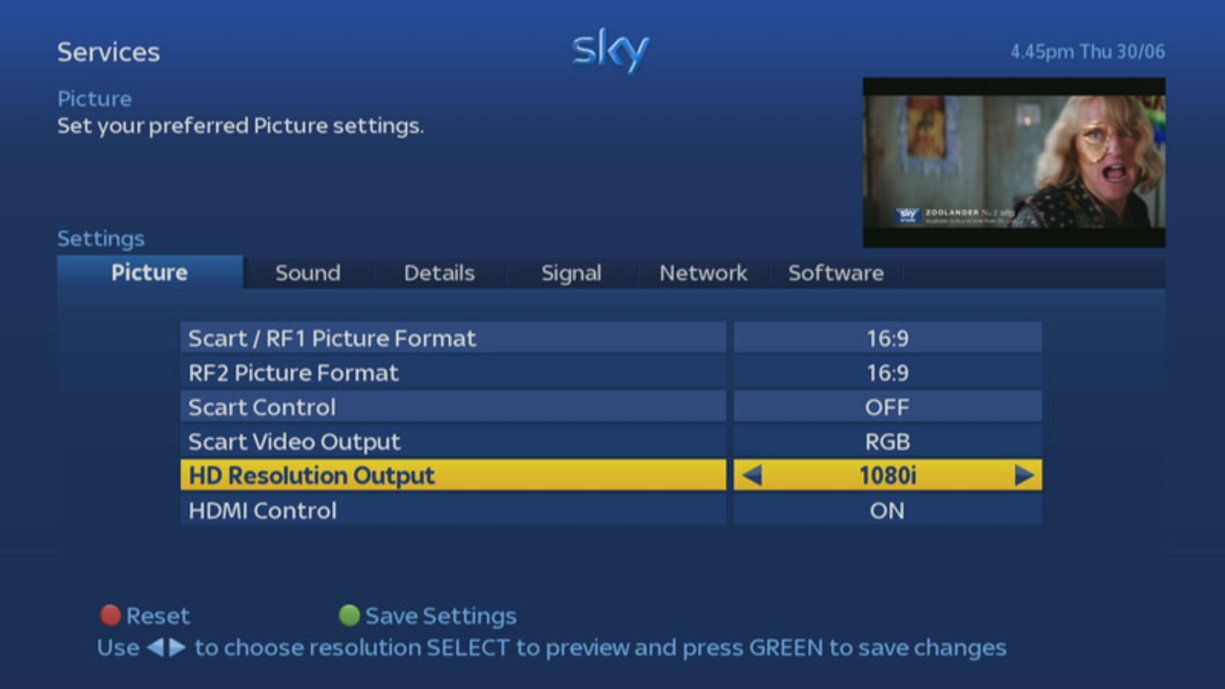
- Press services on your Sky remote, select Settings and then select Picture.
- Highlight HD Resolution Output, change the setting to 1080i and then press select. You'll see an on screen message that reads: You are about to change the output resolution.
- Press select to continue. You will then see a confirmation message that reads: Output Resolution changed.
- If you only see a blank screen then either wait 10 seconds, or pressbackup, to return to picture settings.
- Press select to continue, then green to save the setting and sky to return to your viewing
If you're still having problems continue to the next step.
Try another HDMI port on your TV
If your TV has more than one HDMI port, then the problem might be with the HDMI port you're using.
Disconnect the cable from its current HDMI port on the TV and move it to a different one and change the TV source to the new HDMI channel.
If you're still having problems, or you only have one HDMI port, continue to the next step.
Try a direct connection between your Sky box and TV
If your Sky box is connected to your TV via another device (like a cinema system or amplifier), try connecting your HDMI cable from your Sky box, directly to your TV.
If your picture is back to normal, there may be a problem with the device you've just disconnected. Contact the manufacturer for advice.
If you're still having problems, or your Sky box is already directly connected to your TV, continue to the next step.
Restart your Sky box
- Press standby on your Sky remote, then switch off or unplug your Sky box at the mains socket, making sure there are no lights on the front of your Sky box.
- Plug in and switch your Sky box back on at the mains socket. Check the power light has returned.
- Wait at least 4 minutes, then press Sky to switch on your Sky box.
Most features will work straight away, but Search, TV Guide and the Planner may take a few minutes.